wireguard
This metapackage explicitly depends on both the kernel module and the userspace tooling.
Latest reviews

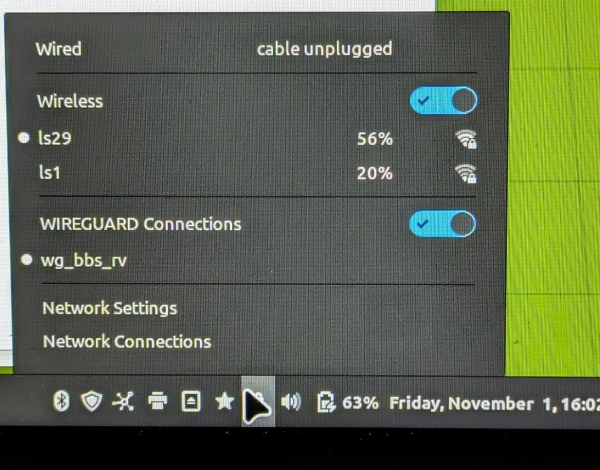
[ENG] If you do not see the option to add the Wireguard connection, perform the following steps. To make the option appear in Network Manager, you need to add the Wireguard (.conf) connection to the Network Manager CLI using the following command: nmcli connection import type wireguard file "file.conf" Note: You must replace the filename with the one you want to import. This will add the configuration and it will appear as shown in the image. [ESP] Si no te aparece la opción de añadir la conexión Wireguard, realiza los siguientes pasos. Para que aparezca la opción en el network manager es preciso añadir la conexión de Wireguard (.conf) con el Network Manager Cli con el siguiente comando: nmcli connection import type wireguard file "file.conf" Nota: Se debe cambiar el nombre del fichero por el correspondiente que se quiera importar. Esto añadirá la configuración y aparecerá igual que se ve en la imagen.
Perfekt, klein, schlank, erscheint im network manager und funktioniert. Ein paar Hinweise zur Einrichtung: Beispiel Wireguard mit Fritzbox Router. Config aus der Fritzbox downloaden, dann .conf Datei importieren per Terminal: [nmcli connection import type wireguard file client.conf] => ohne die eckigen Klammern; client.conf umbenennen in die eigene .conf Datei => die .conf Datei muss in dem Verzeichnis sein, in welchem das Terminal geöffnet ist. Danach erscheint Wireguard im Network Manager und kann optional weiter konfiguriert werden - war bei mir nicht nötig. Einfach mit dem kleinen Schalter bei Wireguard connections ein- und ausschalten.